The "Invite a friend" box to invite someone to use GMail is there since the inception of GMail in 2004. At that time, the GMail was only available to invited people. The people, who are already using GMail, were only able to invite other e-mail users to GMail. A GMail user was able to send 50 invites. And after using the 50 invites, another 50 invites get available to the user within minutes or hours.
Here is how the "Invite a friend" box looks:

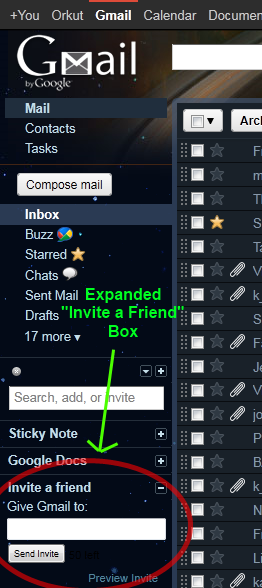
But now GMail is open to all, anybody can register for GMail directly. So the "Invite a friend" is almost useless. Whenever I look at it, it annoys me, irritates me.
But, unfortunately, there is no way provided in GMail settings to remove the "Invite a friend" box. There is no GMail Labs feature available, as of my knowledge and when writing this, providing any option to remove it.
Here is how the "Invite a friend" box looks:
But, unfortunately, there is no way provided in GMail settings to remove the "Invite a friend" box. There is no GMail Labs feature available, as of my knowledge and when writing this, providing any option to remove it.
Solution
So I searched on Internet. On a blog, I found someone saying the way to remove this irritating thing using the Adblock Plus (ABP), a well-known Mozilla Firefox and Microsoft Internet Explorer add-on/extension. It is also available for Google Chrome but it in beta stage and not working good enough; also it is not possible to hide the "Invite a friend" box with ABP in Google Chrome.
Another way to remove it is using the GreaseMonkey add-on and use any of the script found at : http://userscripts.org/scripts/search?q=Gmail+Invite+a+Friend.
I will show here the steps to use the Adblock Plus add-on on Firefox to hide the "Invite a friend" box: First of all, open Firefox , go to Adblock Plus website and click on the "Install Adblock Plus" button. Restart Firefox. You should see a button of Adblock Plus somewhere in toolbar. Log into your GMail account. Ensure that the "Invite a friend" box is collapse, as shown in the first image, above. Then follow the following steps:
Another way to remove it is using the GreaseMonkey add-on and use any of the script found at : http://userscripts.org/scripts/search?q=Gmail+Invite+a+Friend.
I will show here the steps to use the Adblock Plus add-on on Firefox to hide the "Invite a friend" box: First of all, open Firefox , go to Adblock Plus website and click on the "Install Adblock Plus" button. Restart Firefox. You should see a button of Adblock Plus somewhere in toolbar. Log into your GMail account. Ensure that the "Invite a friend" box is collapse, as shown in the first image, above. Then follow the following steps:
- Click on the Adblock Plus button on the toolbar.
- A menu will appear.
Click on the "Select an element to hide" option from the menu. - A panel will appear at left side displaying some shortcuts to use for selecting proper element.
Wherever you hover the mouse pointer, the current element will be highlighted with a thick red outline/border.
Hover mouse pointer over the "Invite a friend" box.

When you see the "Invite a friend" highlighted AND "div, id: :rc, class: py pr" is shown like a tooltip below it, you should click.
The tooltip is showing currently-highlighted element's name, id and class. Match your screen with the below image. The "div, id: :rc" is important in the tooltip, other things aren't. - A dialog box will appear.
Ensure these three things :- "Element hiding rule" is "mail.google.com###\:rc". (The following 2 things are not need to be confirmed if this is correct, because this is based on the below two options.)
- "mail.google.com" is selected in the "Bind to domain" group box.
- ":rc" is written in the textbox of "id:" and its checkbox is checked.


